Managing surveys
A survey is a form that lets people add places to your map without being part of your team. They answer your questions, and their contribution arrives as an answer that your team reviews before it shows up on the map.
A survey belongs to a team. Most surveys are tied to a map, so the answers become places on it, but they don’t have to be: a survey can collect answers on its own, without putting anything on a map. You can have more than one survey per map: one for bike racks, one for drinking fountains, one for a weekend event.
Table of contents
Adding a survey
To create a survey:
- Click on the “+” button from the top menu and select
Survey. - Fill in the name and write a short article that tells people what you are collecting and why their contribution matters. This article is shown at the top of the form.
- Select the team that owns the survey.
- Press the
Addbutton.
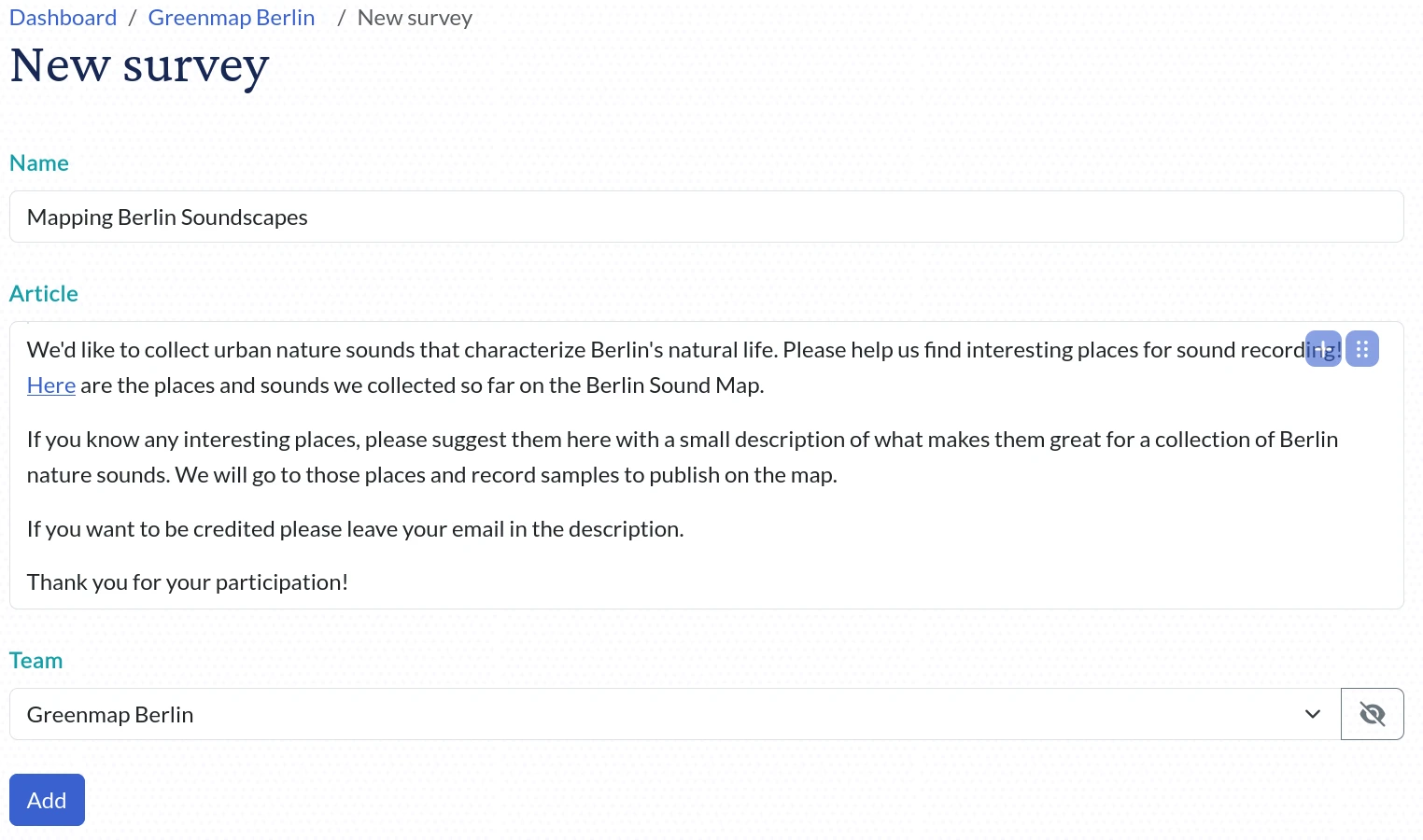
A new survey starts with the questions everybody needs: where the place is, what it’s called, what it looks like. You decide the rest in the form editor.
If your survey puts its answers on a map, set up the map and its icon sets first. The icons your survey offers come from its map, and without one it can only offer the platform’s default icons.
The survey dashboard
Everything about one survey starts from its dashboard. To open it, go to your team dashboard and click on the survey card.

The dashboard shows how the survey is doing and what came in:
- the analytics of the survey at the top
- the list of answers people submitted
- a download button that exports the answers to your computer
- a Form editor button that opens the editor
- a Survey button that opens the previous survey editor, for the few things you may still need it for
The form editor
The form editor is where a survey is built. It shows your survey as a real form and lets you change it by clicking on it: the questions, their order, the texts around them and every setting of the survey.
- Building your form explains the editor itself: selecting, adding, moving and removing questions.
- Questions and their types explains what you can ask and which type to pick.
- Survey settings explains the settings of the survey, from its schedule to who can see it.
- Translating a survey explains how to write your questions in other languages.
Only people with rights to edit the survey can change it.
Where the answers go
Answers are not published straight to the map. Every one of them waits for someone from your team to review it, so a survey can’t be used to put something on your map without your say-so. Reviewing and publishing answers is described in Publish submitted answers.